Edge Lens
Edge Lens shows the health and usage of your own SIM fleet. Use it to spot SIMs that may need attention, understand traffic patterns, and explore the module models deployed in your fleet.
Devices needing attention
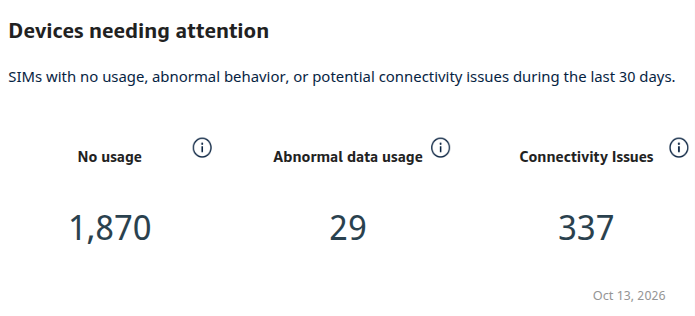
No usage
This tile counts SIMs that previously used mobile data regularly, then recently stopped and have been inactive for at least seven days.
The count excludes never-used SIMs and does not include every silent SIM. SMS activity does not count as mobile-data use for this indicator.
Check Last update to understand the date behind the inactivity window. Hover over the value to open the No-usage table and identify recently inactive SIMs.
Abnormal data usage
This tile counts SIMs with at least three days of unusually high data usage in the configured period. The comparison uses each SIM's own traffic history and requires at least seven observed days of history.
Repeated spikes are a prompt to investigate a SIM's usage pattern. They do not diagnose the cause or compare that SIM with other SIMs.
Hover over the value to open the Abnormal usage heatmap and locate the flagged dates.
Connectivity Issues
This tile counts SIMs flagged by the report's connectivity-issue checks. These checks look for patterns such as frequent connection setup, repeated network-location updates, or network resets.
This is a connectivity-quality signal. It identifies SIMs worth investigating, but it does not establish the cause of a problem or count failed connection attempts.
Hover over the value for the Connectivity issues heatmap. Do not interpret the count as a guaranteed number of separate problem days per SIM.
Last update
The tile at the lower-right of Devices needing attention shows the latest available fleet usage date. Use it to understand how recent the fleet activity behind the report is.
This date is separate from the portal's Last updated refresh timestamp above the report, and it says nothing about Device Analyzer's data freshness.
Use this date alongside the selected widget period when interpreting recent activity or inactivity. The SIM selector and the other widgets' date controls do not narrow this tile.
Usage analytics
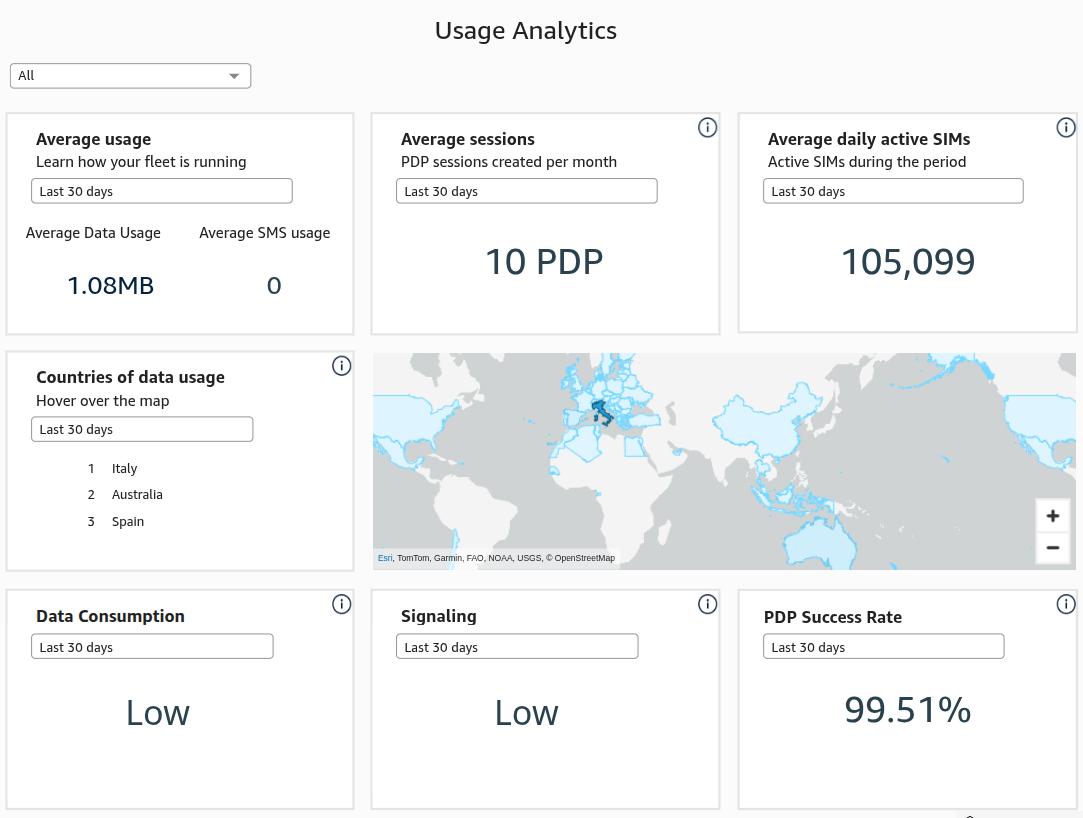
The ICCID SIM selector filters every widget in this section to the selected SIMs. Use the date controls to set each widget's reporting period. Average Data Usage and Average SMS usage share a control, as do the country list and map.
Average Data Usage
This widget summarizes accumulated mobile-data usage per SIM, in MB, for the selected usage period and SIMs. It describes usage over that period, rather than MB per day, and is not guaranteed to give every SIM equal weight.
Do not multiply the displayed average by your total SIM inventory to reconstruct total fleet usage.
Average SMS usage
This widget summarizes outgoing and incoming SMS combined per SIM for the selected usage period and SIMs. Like Average Data Usage, it is not guaranteed to give every SIM equal weight.
Average Sessions
Average Sessions shows how many successful PDP connection requests a SIM makes on a day when it connects, averaged over the selected period and SIMs. It counts connection requests, not how long connections last or how many are open at once. The displayed average may not give every SIM equal weight.
Average Daily Active SIMs
This widget shows the average number of distinct SIMs with successful PDP requests on the observed dates in the selected view.
Activity here means successful mobile-data connection requests. It does not mean all provisioned SIMs, all powered-on devices, or SIMs with only rejected requests.
Dates with no matching activity can be absent from the average, so do not assume it includes every calendar day in the selected range.
Countries of Data Usage
Country list: Lists the three countries with the most mobile-data volume in the selected period and SIM selection, displayed as rank and country.
The ranking describes where traffic volume is concentrated. It is not a ranking by SIM count, customer adoption, or billing country.
Read the first country as the largest contributor by data volume. Use the map for the wider geographic picture.
Country map: Shows the geographic distribution of fleet data volume. Hover over a country to see its volume and any displayed operator information.
Shading lets you compare where data is being used. The map can include countries beyond the three shown in the list.
The map and list share a date control and the SIM selector. Read the country tooltip for detail. A displayed operator name is not a complete breakdown of all operators that may contribute to that country's traffic.
Data Consumption
This widget labels data-volume intensity as High, Medium, or Low for the selected period and SIMs.
The label considers usage for each observed SIM and day. High means at least 10% of those SIM-and-day observations used at least 50 MB. Otherwise, Medium means at least 20% used at least 5 MB. The remaining cases are Low. High takes precedence over Medium. Days without observations are not automatically treated as zero-use days.
High describes heavier consumption, which may be expected for your application. It is not an anomaly verdict. Hover over the label for the Data usage heatmap.
Signaling
This widget labels signaling load as High, Medium, or Low for the selected period and SIMs. Signaling is the network-control activity used to establish and manage connections.
The report combines selected signaling events into a weighted score: different network event types contribute different amounts. High means at least 10% of observed SIM-and-day scores reach 300. Otherwise, Medium means at least 20% reach 50. The remaining cases are Low.
Use this as an indicator of network-control activity. A higher label means heavier signaling. It does not establish better connectivity or prove a fault. The score does not measure data volume or a failure percentage. Hover over the label for the Signaling heatmap.
PDP Success Rate
This widget shows the percentage of classified PDP connection attempts that succeeded, among successful and rejected attempts in the selected view.
A lower percentage indicates a larger share of rejected attempts. The percentage counts attempts, rather than SIMs, so a SIM making many attempts can contribute more than another SIM.
Check that its period matches Average Sessions before comparing them. If there are no classified attempts, the percentage can be blank. A blank value is not a measured zero-percent success rate.
Detail and hover panels
Hover over the parent tile's value or label to open its detail panel. The information icon opens help text instead. The panel follows its parent tile's filters and the hovered value's context. An empty panel means no details are available for the current selection.
Each panel selects its SIMs differently. The heatmaps do not share a single color meaning.
No-usage table
Parent: No usage.
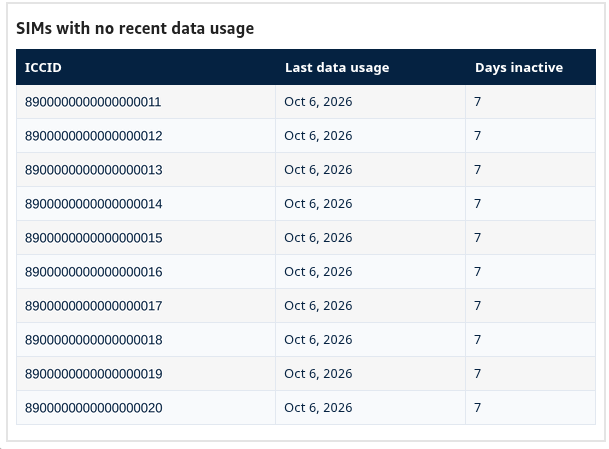
The table SIMs with no recent data usage shows ICCID, Last data usage, and Days inactive. It lists up to ten qualifying SIMs, with those that stopped using data most recently first. Read the SIM identifier alongside its last-use date and inactivity duration to choose which SIM to investigate. It is not a list of the longest-inactive SIMs and excludes never-used SIMs.
Abnormal usage heatmap
Parent: Abnormal data usage.
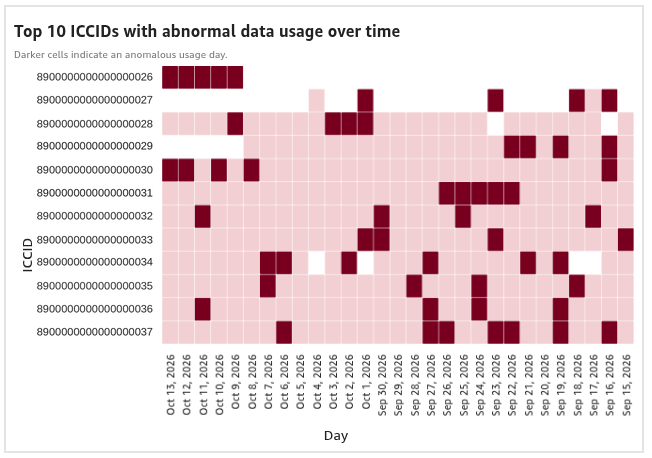
Use this heatmap to find repeated spikes in a SIM's data usage compared with its usual pattern. Each row represents a SIM, identified by ICCID, and each column represents a day. The panel selects SIMs with the most days flagged for unusually high usage.
Dark red cells mark flagged days. Light pink cells show days that did not trigger the anomaly check. White cells have no displayed data. They do not necessarily mean the SIM had no traffic.
Look across a row to find recurring spikes, then check the dates for further investigation. The colors show which days were flagged, not how large the spikes were.
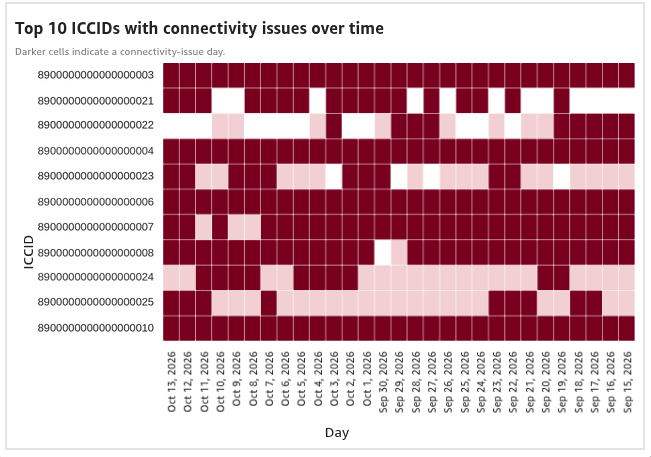
Connectivity issues heatmap
Parent: Connectivity Issues.
This panel is designed to select SIMs by their number of distinct flagged days. Each SIM-and-day cell carries a yes/no connectivity-issue flag, rather than a failure count or severity score. Use the Day labels to identify when connectivity issues were flagged for a SIM.
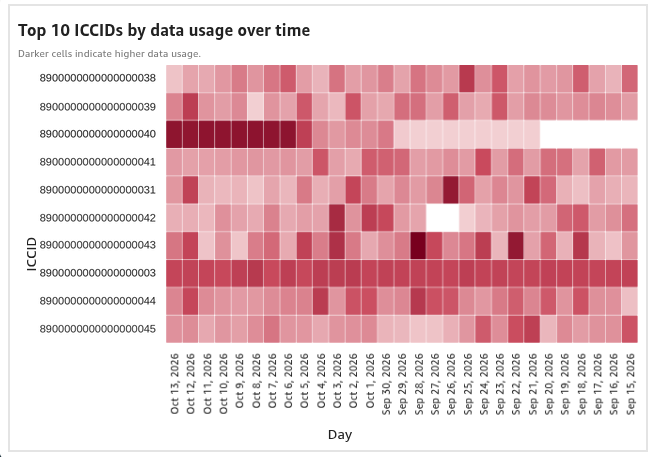
Data usage heatmap
Parent: Data Consumption.
Each cell shows displayed data volume for one SIM on one day. Darker cells mean more displayed volume. Rows are selected by their displayed volume, and dates run from newer to older. Use the pattern to locate heavier-usage SIMs and days. A dark cell is not an anomaly flag.
A white or blank cell must not be assumed to mean zero usage.
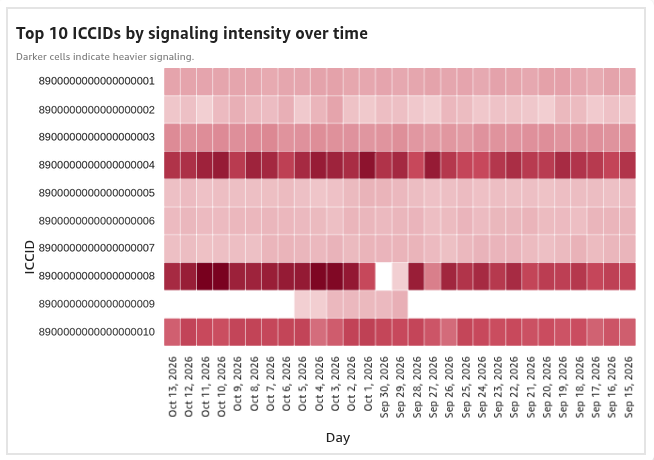
Signaling heatmap
Parent: Signaling.
Each cell shows a weighted signaling score for one SIM on one day. Darker cells mean a higher score, rather than more bytes or more confirmed failures. The SIM selection uses a typical (median) signaling score, so the panel is not simply a list of the ten largest total signaling contributors.
Read across a SIM's row to see how its signaling activity changes over time. Use the Day labels to identify when activity increased or decreased.
Top devices in your fleet

This list shows up to two leading module models in your fleet, with their manufacturers, ranked by device count. Here, a device entry represents a module model, rather than a single SIM.
Select a listed module to open its profile inside the report. See the module-profile guide for details. If no modules are listed, you can still use Compare your Device to explore Device Analyzer.
The button opens the Device Analyzer landing view. See the landing-view guide for details.