Cell Tower Events
Cell Tower Events table
The Cell Tower Events tab on the Device Locator page lists the cell tower location resolution attempts for the selected device, retained for up to 7 days. Each row shows the event creation time, network access type (for example, LTE-M or NB-IoT), status (resolved by the Basic solver mode or the Plus solver mode), and resolver mode.
What the Network Event Resolver is
The Network Event Resolver re-runs cell tower location resolution with the Plus solver mode for one cell tower event you select on the Cell Tower Events tab.
The Network Event Resolver is a free tryout of the Plus solver mode and does not consume any Device Location Credits. The locations it produces are only for testing on demand and are not stored — the resolved data is lost when you close the "Cell tower event details" panel, navigate away, or close the browser tab.
Use it to re-resolve a single event that the Basic solver mode resolved imprecisely or failed to resolve, and see whether the higher-accuracy Plus solver mode does better — subject only to the usage limits below. To use the Plus solver mode beyond the tryout, follow the "Upgrade to Plus" path to enable it and its Device Location Credits.
To view resolution attempts through the API, use the Get Device Activity endpoint.
Per-event-type guide
| Event type | On open | Resolve |
|---|---|---|
| Succeeded Basic | Red "Basic resolver" marker, detail fields, metadata JSON. | Enabled. |
| Failed Basic | No marker plus "Resolve to see the location on the map.", detail fields, metadata JSON. | Enabled. |
| Already Plus-resolved | View-only: blue "Plus resolver" marker with accuracy circle and resolved metadata. | Disabled (see Restrictions). |
| NB-IoT | Detail fields and metadata. | Disabled (see Restrictions). |
| Read-only role | Map, detail fields, metadata. | Not available. |
Step-by-step walkthrough
- Open the Cell Tower Events tab on the Device Locator page for the selected device.
- Open the "Cell tower event details" panel for the event you want to re-resolve — either hover the row and select the details icon at its end, or select the row. The panel opens docked on the right.
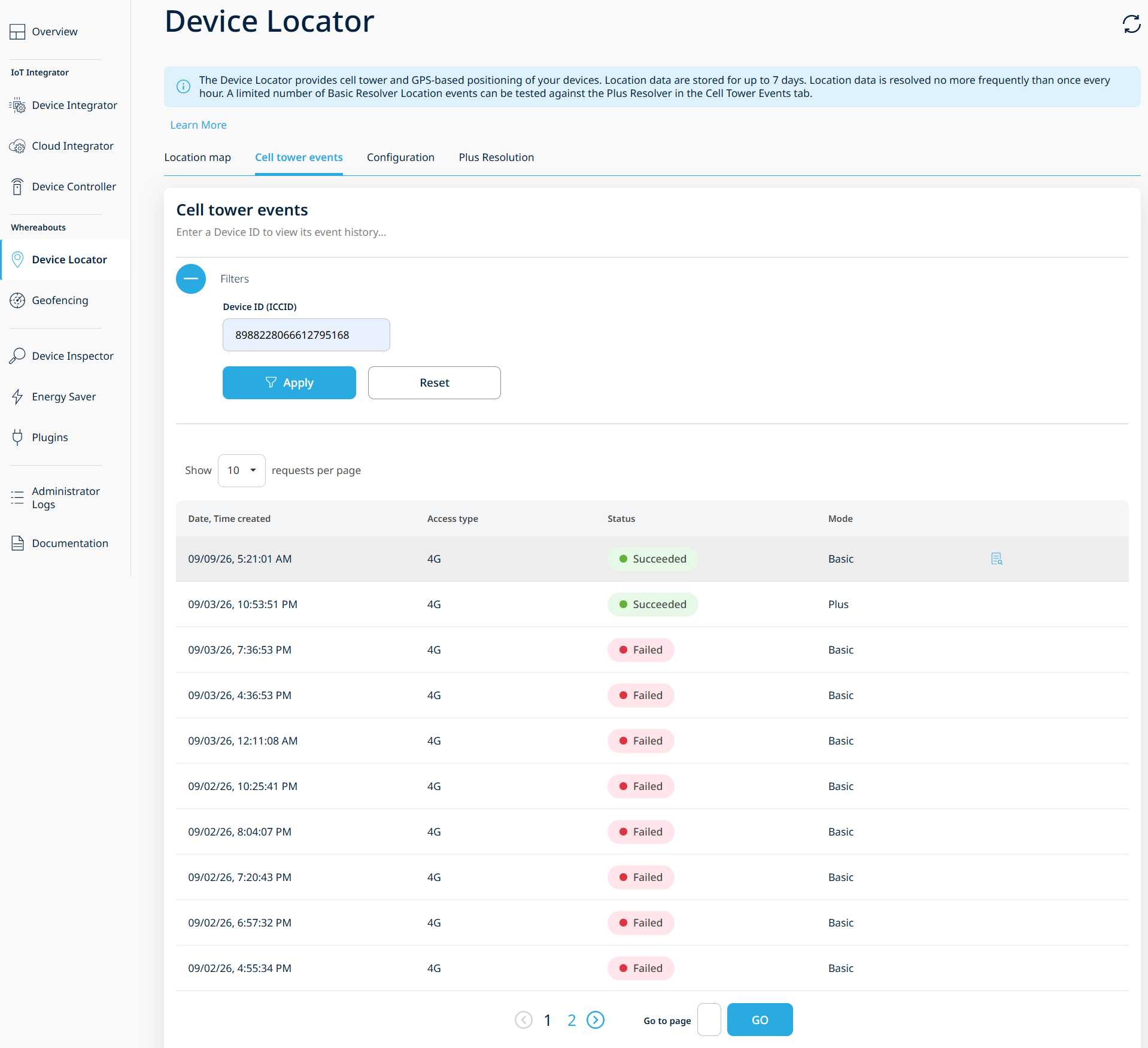
Opening an event's details from the Cell Tower Events table.
- Review the event detail fields: Device ID (ICCID), Mode, Status, Access technology, and "Cell tower event time".
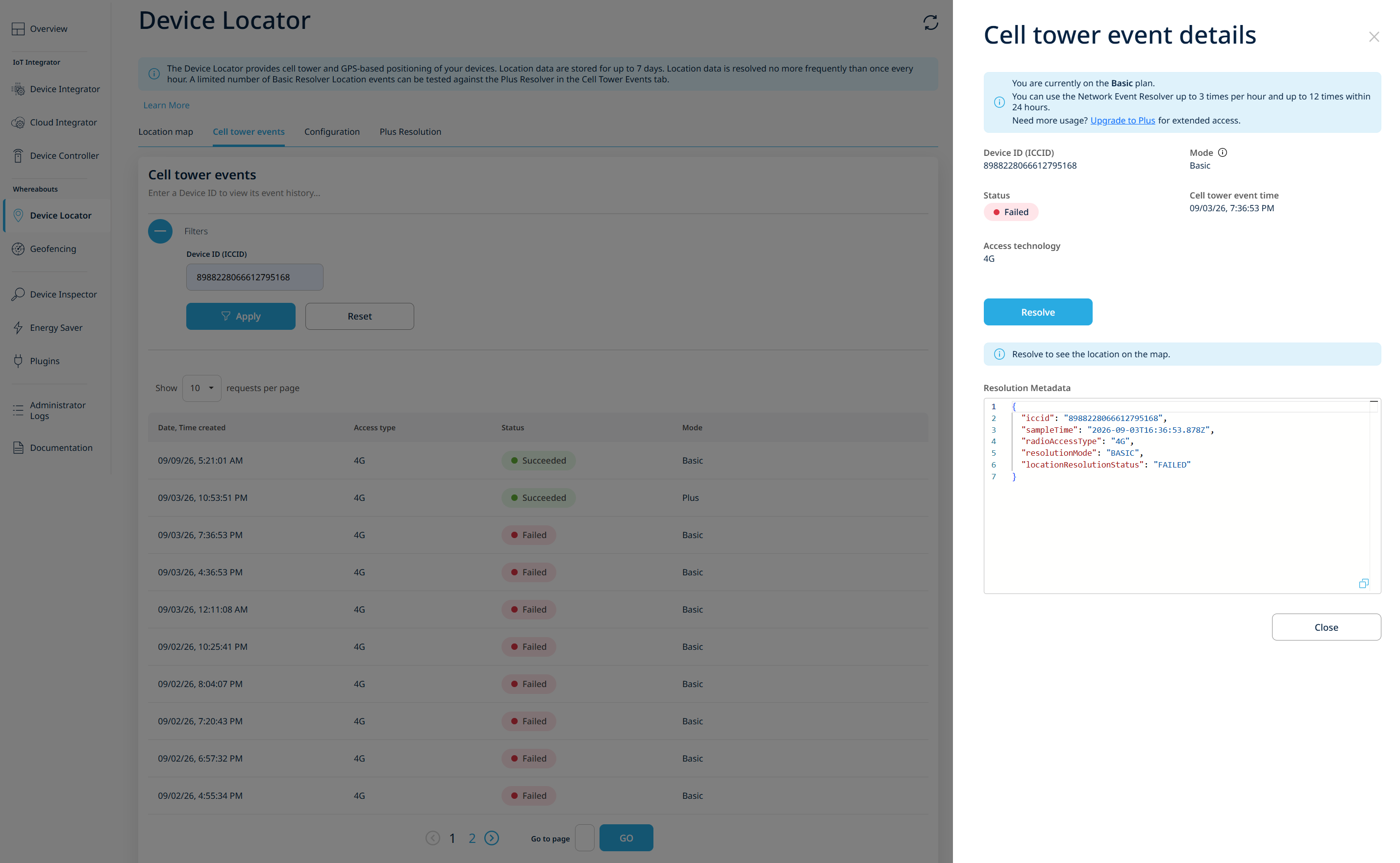
The "Cell tower event details" panel before resolving.
- Select "Resolve" to re-run resolution with the Plus solver mode. The panel shows a loading indicator while it runs, then "Resolve" is disabled — you get a single attempt per event, whether it succeeds or returns no location.
- On a successful result, the map heading becomes "Map location (Resolved)" and shows the red "Basic resolver" before marker and the blue "Plus resolver" after marker (with an accuracy circle and a legend). If the before and resolved coordinates are identical, only the blue marker is shown.
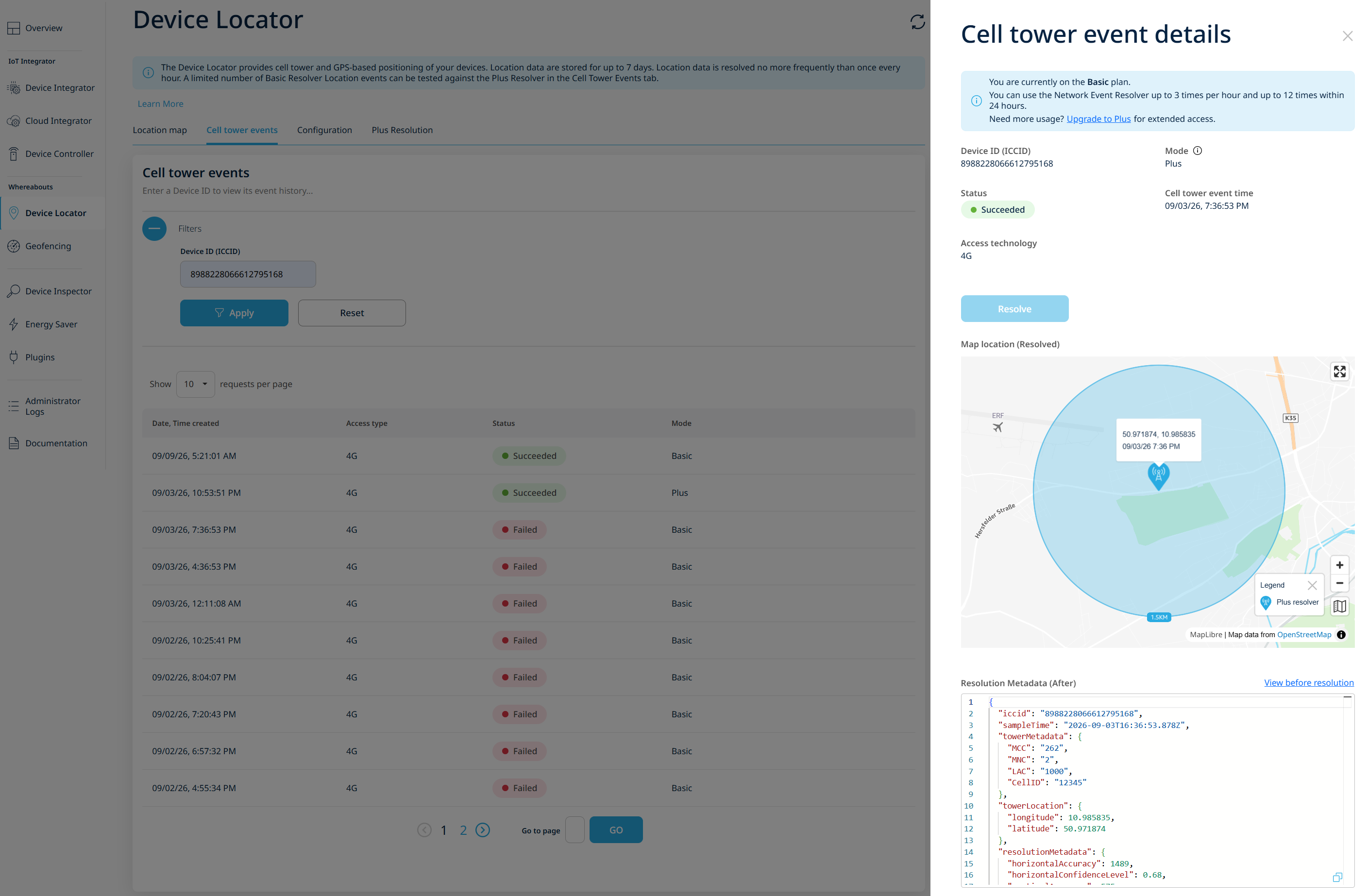
A successful on-demand Plus solver mode resolution.
- On a no-location result, a "no location" message is shown, the before marker is retained, and the Status shows "Failed". This result is final and "Resolve" stays disabled.
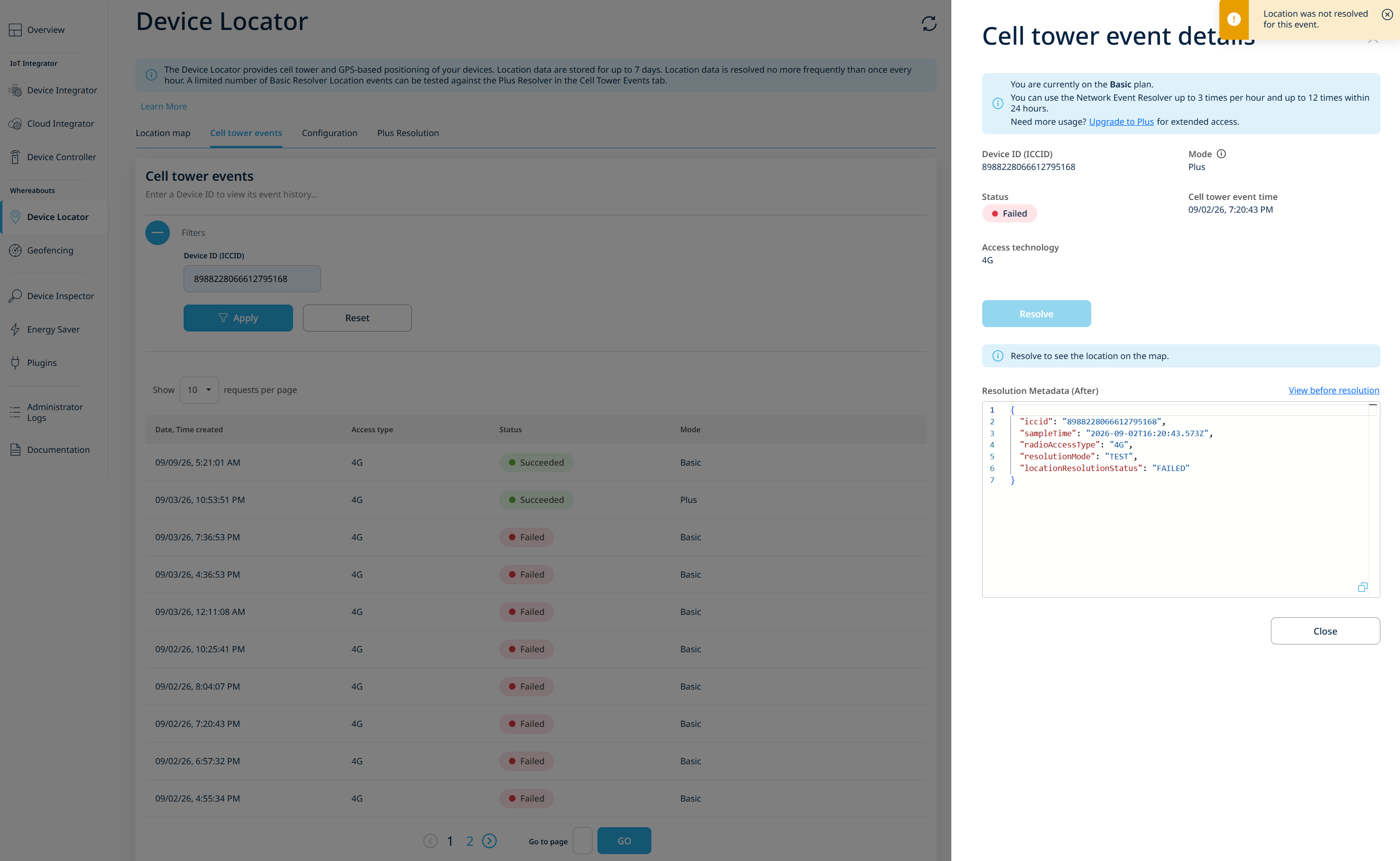
A resolution that returned no location.
- Use the "View before resolution" / "View after resolution" toggle to switch the metadata between the original and resolved JSON ("Resolution Metadata" becomes "Resolution Metadata (After)", and the after view shows Status "Succeeded" / Mode "Plus"). Select "Copy" to copy the shown JSON.
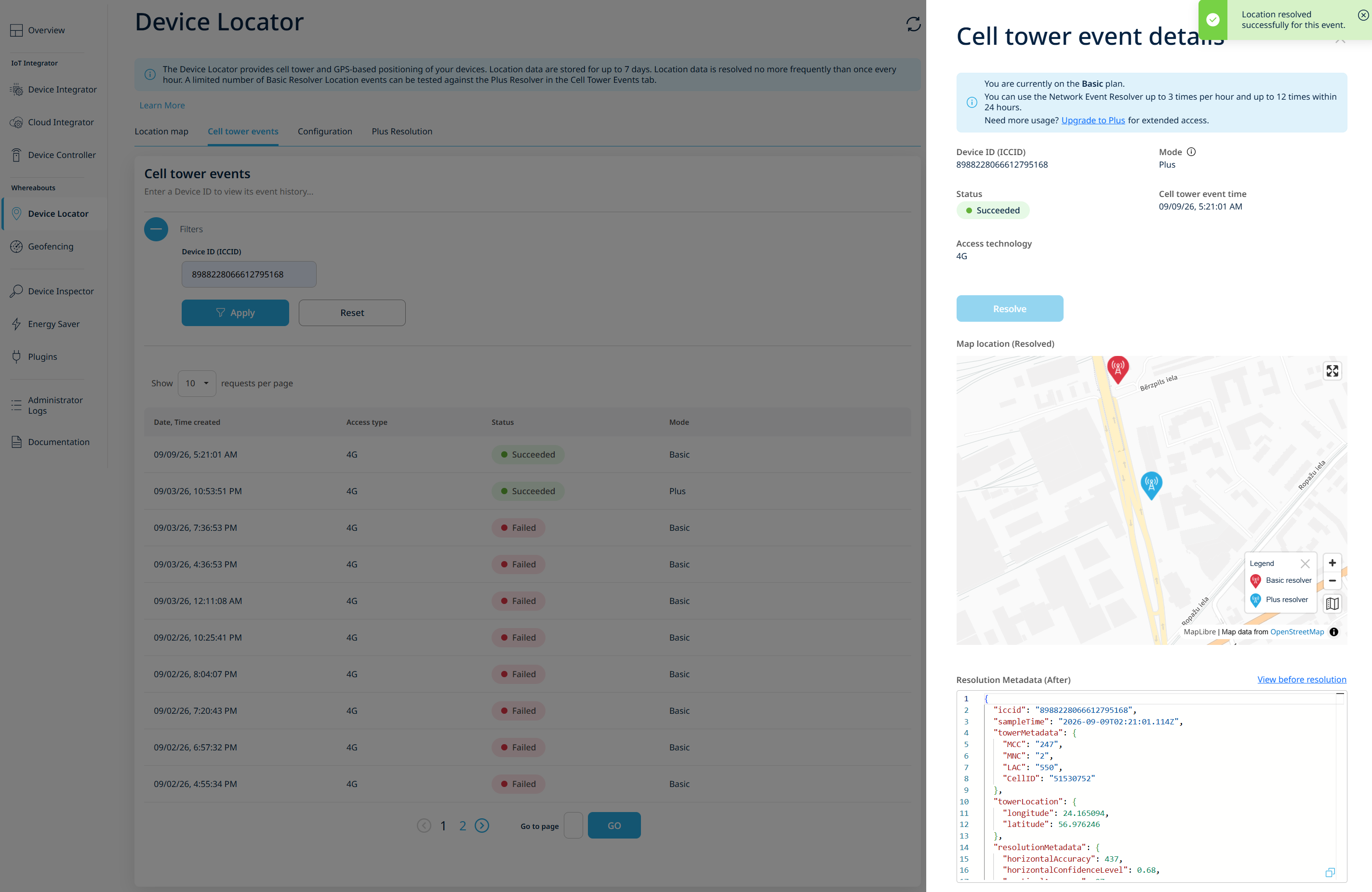
Comparing the Basic and Plus locations.
Usage limits and limit-reached behavior
On-demand resolution is capped at 3 resolutions per 60-minute window and 12 per 24-hour window; both apply at once. When you reach either cap, the attempt is blocked and a "Limit reached" dialog appears instead of a result. You cannot resolve again until your usage falls back within both caps.
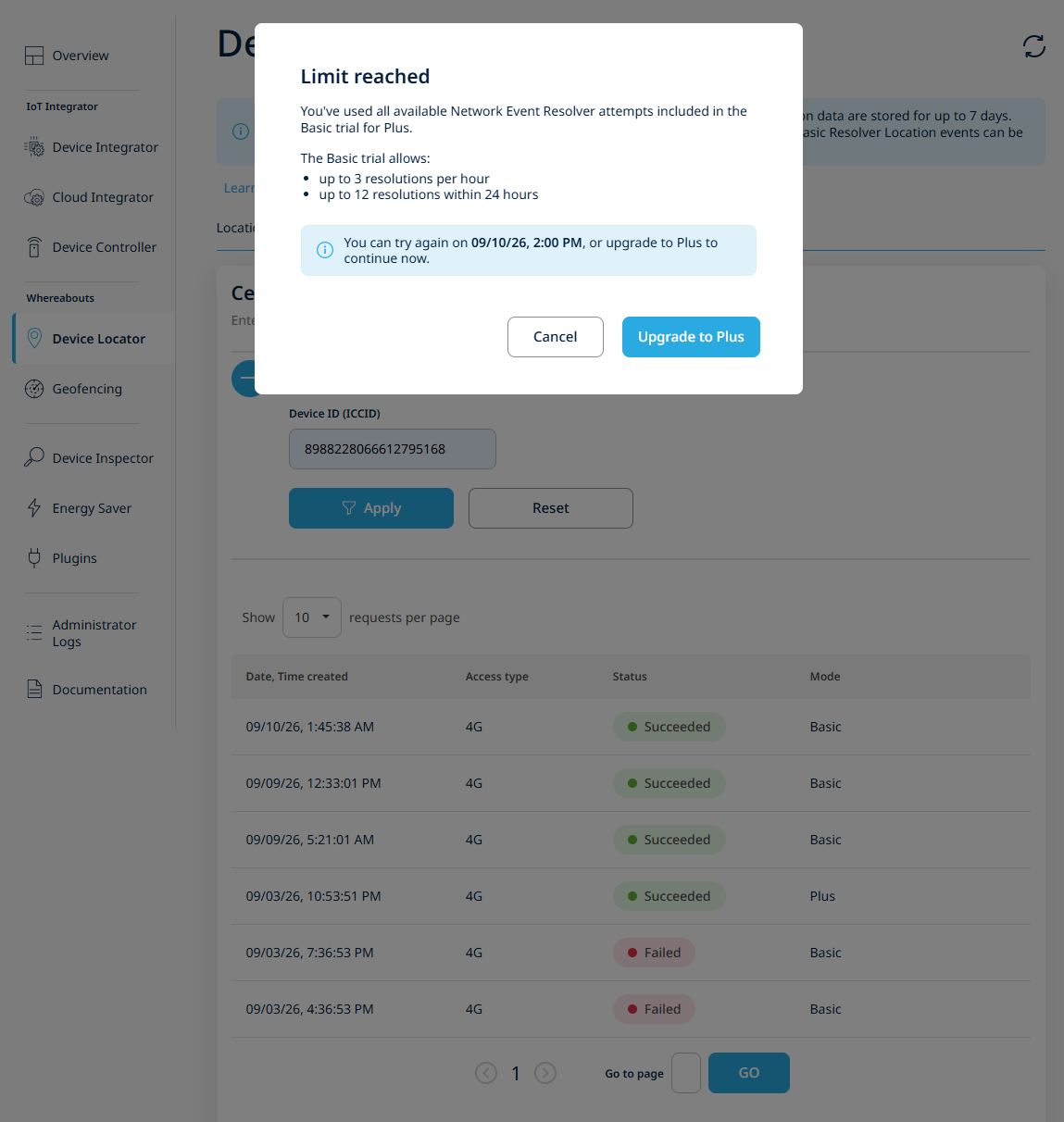
The "Limit reached" dialog.
The dialog's title and description reflect which limit you reached, and — when a reset time is available — a line tells you when you can resolve again. On the Basic plan, the dialog also offers an "Upgrade to Plus" call-to-action (not shown if the Plus solver mode / ADL is already enabled).
Restrictions
- NB-IoT is not supported. For an NB-IoT event, "Resolve" is disabled with the message "Resolution is not available for NB-IoT devices." NB-IoT is the only blocked access type.
- Already resolved by the Plus solver mode. The panel opens view-only with "Resolve" disabled and the tooltip "This event was already resolved with the Plus resolver."
- Read-only role. You can open and view the panel, but "Resolve" is not rendered.
- The original event row never changes. After any attempt, the row keeps its prior Failed or Basic state, whether the attempt succeeded or failed.
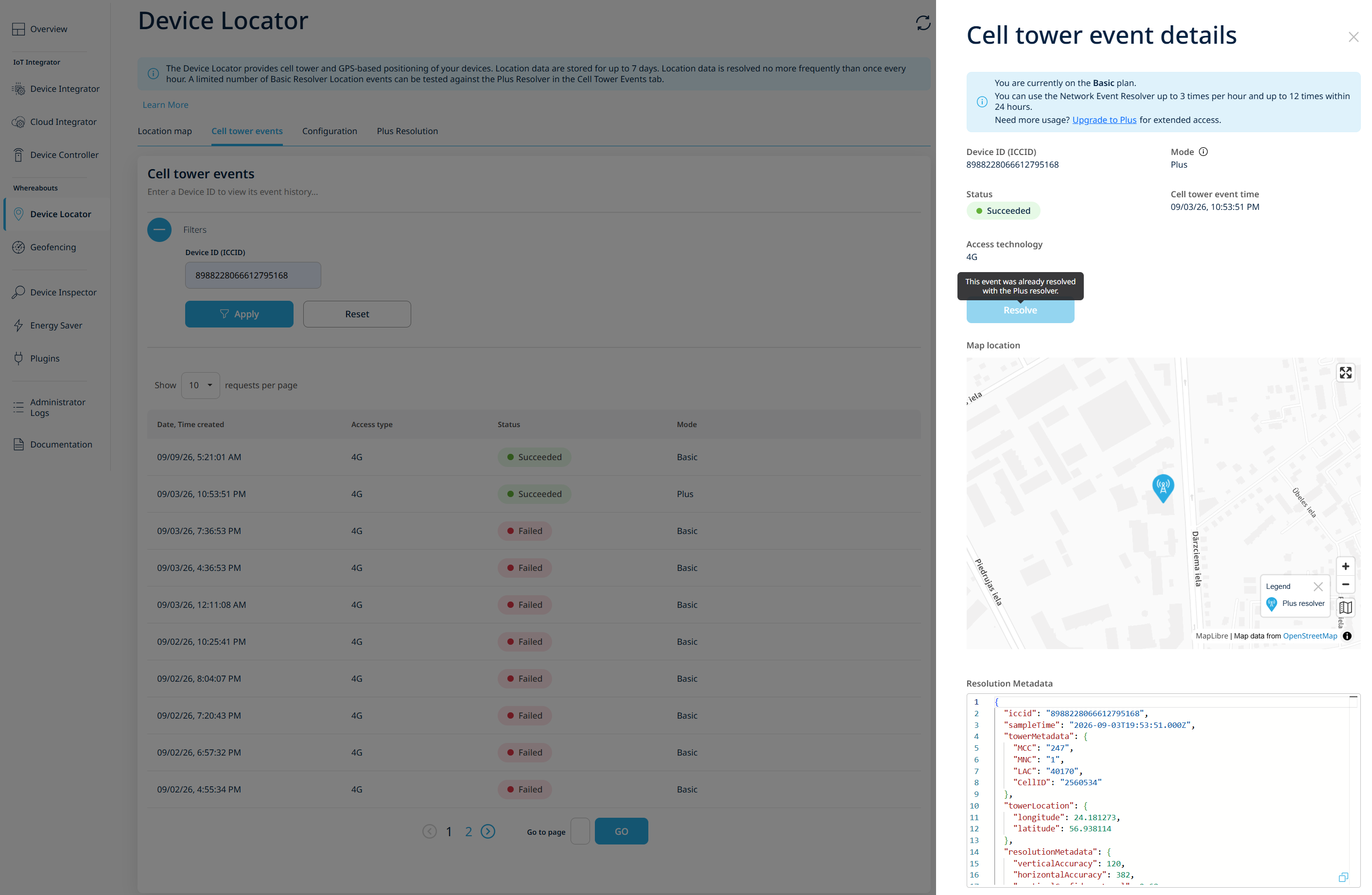
An event already resolved by the Plus solver mode (view-only).